Search

Scroll Linked Navigation

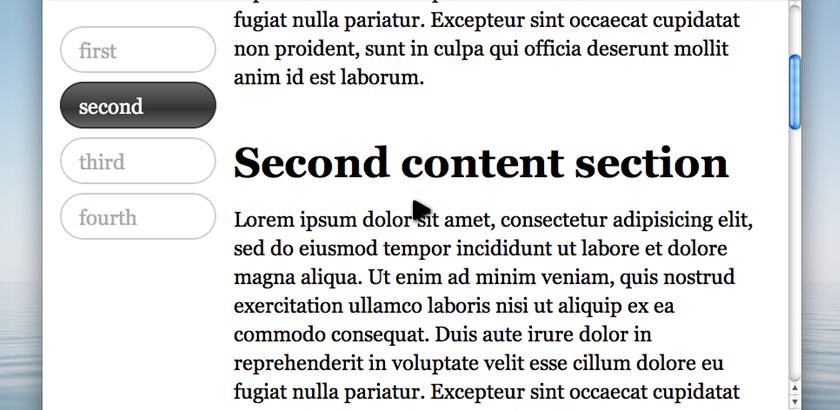
Posted on 18th August 2010 — There are a few websites I’ve seen lately that have a left hand navigation automatically updates it’s selection based on where you’ve scrolled to on the page. This tutorial will show you exactly how to achieve just that.

Watch

Watch Scroll Linked Navigation screencast (Alternative flash version)

QuickTime version is approximately 50Mb, flash version is streaming.

View the demo used in the screencast

The Problem

What you need to do is hook in to the user scrolling the web page, and when a particular element comes in to view, if there’s an associated navigation item - make it selected. That’s the trick, the hard part is working out exactly which element is now in view.

Fortuantly there’s a jQuery plugin for that particular job that makes it really easy to select only those elements that are in the viewport (as well as outside the viewport): viewport selectors plugin.

It’s not a new plugin by any means, but you need to have a specific reason to want to use it - and it fits this job perfectly.

Solving using the viewport selector plugin

Using the sample page I’ve mocked for this example, if you test a jQuery selector using your favourite debugging tool we can work out which section of the page the user is looking at. For this example, I’m going to say the navigation is linked to the topmost h1 in view (from within the console):

$('h1:in-viewport').length

This .length test should give me one or more. Using the h1 element, I’ll navigate up the DOM to find the parent element and use it’s id to update the navigation as appropriate.

Using the id from our container element, we’ll look for a navigation link that contains a hash that matches the id. This is a common pattern that I’ve used several times before, and will look something like this where ourID is the id we got using the viewport selector:

$('nav a[hash=#ourID]')

Don’t worry about that bit just yet, once you see it all working you should get a better idea of how it all fits together.

Before we crack on with the jQuery code required to make this all work, make sure you’ve included both jQuery then the jQuery viewport selectors plugin:

<script src="jquery-1.4.2.js"></script>
<script src="jquery.viewport.js"></script>

Now, we’re ready to rock.

The Solution

We need to satisfy the following steps to make this simple effect work:

  1. Listen (bind) for when the user scrolls the window
  2. Find the topmost h1 element that matches the :in-viewport selector
  3. Use that h1 element to find the id from the container, and use that to find the related navigation link
  4. If the navigation link isn’t already selected, the remove the selected class from all the navigation links, and finally -
  5. Add the selected class to the found navigation link

Using this breakdown, let’s start adding the code in. First listen for when the user scrolls:

$(window).scroll(function () {
  
});

We need to listen on the window because it’s the whole window the user can scroll. If you wanted to localise this technique to a specific element with overflow, you would use something like $('#foo').scroll(fn).

Our h1s are inside the #content > section selector, but I want to allow for more than h1 in the section, need to find all that are in the viewport, then narrow to the first:

$(window).scroll(function () {
  var inview = $('#content > section > h1:in-viewport:first');
});

Now the inview variable will have a jQuery object. This isn’t what we want, we want the id and we need it to match the hash attribute on a link. So if the id is ‘first’, the hash should be ‘#first’. So let’s get the id from the parent section element and get the id attribute and finally prepend a # symbol to create the hash:

$(window).scroll(function () {
  var inview = '#' + $('#content > section > h1:in-viewport:first').parent().attr('id');
});

Normally I wouldn’t use the attr('id') method to get the element id, I would do something like .parent()[0].id, but because we’re using the :in-viewport selector, there’s a good chance that the selector will fail to match anything if we scroll too far, so using jQuery’s attr is a safe way of getting some value without our code breaking.

Next we’ll use this hash to find the navigation link:

$(window).scroll(function () {
  var inview = '#' + $('#content > section > h1:in-viewport:first').parent().attr('id'),
      $link = $('nav a').filter('[hash=' + inview + ']');
});

Make sure you try out this newly added line of code in your debugger - swapping the variable inview for a string like ‘#first’, etc. It’ll show you which element it’s selecting.

There’s two tests we need to make before continuing:

  1. Did we actually match anything, using length
  2. Only proceed if the link isn’t already selected
$(window).scroll(function () {
  var inview = '#' + $('#content > section > h1:in-viewport:first').parent().attr('id'),
      $link = $('nav a').filter('[hash=' + inview + ']');
      
  if ($link.length && !$link.is('.selected')) {
    
  }
});

Finally we remove the selected class from the existing navigation and add it to the correctly found $link navigation:

$(window).scroll(function () {
  var inview = '#' + $('#content > section > h1:in-viewport:first').parent().attr('id'),
      $link = $('nav a').filter('[hash=' + inview + ']');
      
  if ($link.length && !$link.is('.selected')) {
    $('nav a').removeClass('selected');
    $link.addClass('selected');    
  }
});

Related screencasts

Demo

If you find this demo doesn't work as expected, it's possibly due to the demo running from within an iframe. Try running the demo in it's own window.

Source Code

<!DOCTYPE html>
<html lang="en">
<head>
<meta charset=utf-8 />
<title>Scroll linked navigation</title>
<style>
body {
  margin: 0;
  font: 24px/1.4em georgia;
}
nav {
  position: fixed;
  top: 20px;
  left: 20px;
  width: 180px;
  display: block;
}
ul {
  list-style: none;
  margin: 0;
  padding: 0;
}
nav a,
#selectedBacking {
  display: block;
  color: #aaa;
  text-decoration: none;
  padding: 10px;
  border: 2px solid #ccc;
  margin: 10px 0;
  border-radius: 30px;
  -moz-border-radius: 30px;
  padding-left: 20px;
  height: 30px;
  z-index: 2;
  position: relative;
}
nav a:hover {
  border: 2px solid #333;
  background: #999;
  background: -webkit-gradient(linear, 0% 0%, 0% 100%, from(#999), to(#999), color-stop(.6,#666));
  color: #fff;
}
nav a.selected,
#selectedBacking {
  border: 2px solid #333;
  background: #666;
  background: -webkit-gradient(linear, 0% 0%, 0% 100%, from(#666), to(#666), color-stop(.6,#333));
  background: -moz-gradient(linear, 0% 0%, 0% 100%, from(#666), to(#666), color-stop(.6,#333));
  background: gradient(linear, 0% 0%, 0% 100%, from(#666), to(#666), color-stop(.6,#333));
  color: #fff;
}
#selectedBacking {
  z-index: 1;
  position: absolute;
  top: 0;
  width: 145px;
}
#content {
  margin-left: 220px;
  width: 600px;
}
#content section {
  display: block;
  padding-top: 10px;
}
#spacer {
  height: 600px;
}
</style>
</head>
<body>
<nav>
  <ul>
    <li><a class="selected" href="#first">first</a></li>
    <li><a href="#second">second</a></li>
    <li><a href="#third">third</a></li>
    <li><a href="#fourth">fourth</a></li>
  </ul>
</nav>
<div id="content">
  <section id="first">
    <h1>First content section</h1>
    <p>Lorem ipsum dolor sit amet, consectetur adipisicing elit, sed do eiusmod tempor incididunt ut labore et dolore magna aliqua. Ut enim ad minim veniam, quis nostrud exercitation ullamco laboris nisi ut aliquip ex ea commodo consequat. Duis aute irure dolor in reprehenderit in voluptate velit esse cillum dolore eu fugiat nulla pariatur. Excepteur sint occaecat cupidatat non proident, sunt in culpa qui officia deserunt mollit anim id est laborum.</p>
  </section>
  <section id="second">
    <h1>Second content section</h1>
    <p>Lorem ipsum dolor sit amet, consectetur adipisicing elit, sed do eiusmod tempor incididunt ut labore et dolore magna aliqua. Ut enim ad minim veniam, quis nostrud exercitation ullamco laboris nisi ut aliquip ex ea commodo consequat. Duis aute irure dolor in reprehenderit in voluptate velit esse cillum dolore eu fugiat nulla pariatur. Excepteur sint occaecat cupidatat non proident, sunt in culpa qui officia deserunt mollit anim id est laborum.</p>
    <h2>Second content more h1</h2>
    <p>Lorem ipsum dolor sit amet, consectetur adipisicing elit, sed do eiusmod tempor incididunt ut labore et dolore magna aliqua. Ut enim ad minim veniam, quis nostrud exercitation ullamco laboris nisi ut aliquip ex ea commodo consequat. Duis aute irure dolor in reprehenderit in voluptate velit esse cillum dolore eu fugiat nulla pariatur. Excepteur sint occaecat cupidatat non proident, sunt in culpa qui officia deserunt mollit anim id est laborum.</p>
  </section>
  <section id="third">
    <h1>Third content section</h1>
    <p>Lorem ipsum dolor sit amet, consectetur adipisicing elit, sed do eiusmod tempor incididunt ut labore et dolore magna aliqua. Ut enim ad minim veniam, quis nostrud exercitation ullamco laboris nisi ut aliquip ex ea commodo consequat. Duis aute irure dolor in reprehenderit in voluptate velit esse cillum dolore eu fugiat nulla pariatur. Excepteur sint occaecat cupidatat non proident, sunt in culpa qui officia deserunt mollit anim id est laborum.</p>
  </section>
  <section id="fourth">
    <h1>Fourth content section</h1>
    <p>Lorem ipsum dolor sit amet, consectetur adipisicing elit, sed do eiusmod tempor incididunt ut labore et dolore magna aliqua. Ut enim ad minim veniam, quis nostrud exercitation ullamco laboris nisi ut aliquip ex ea commodo consequat. Duis aute irure dolor in reprehenderit in voluptate velit esse cillum dolore eu fugiat nulla pariatur. Excepteur sint occaecat cupidatat non proident, sunt in culpa qui officia deserunt mollit anim id est laborum.</p>
  </section>
  <div id="spacer"><!-- this is only here for the demo --></div>
</div>
<script src="http://ajax.googleapis.com/ajax/libs/jquery/1.4.2/jquery.min.js"></script>
<script src="jquery.viewport.js"></script>
<script>

$(window).scroll(function () {
  var inview = '#' + $("#content > section > h1:in-viewport:first").parent().attr('id'),
      $link = $('nav a').filter('[hash=' + inview + ']');

  if ($link.length && !$link.is('.selected')) {
    $('nav a').removeClass('selected');
    $link.addClass('selected');
  }
});

</script>
</body>
</html>

Comments

  1. Jeff Woodruff On 18th August 2010 at 16:08

    Thanks for sharing. This is perfect for a website I’m currently developing.

  2. Benjamin Parry On 18th August 2010 at 17:08

    Hi Remy,

    Thanks for this tutorial.

    This is going to really finish off a site I made with using your Coda Slider tutorial.

    Looking forward to your HTML5 talk at London Web Meetup.

  3. Damion On 19th August 2010 at 06:08

    Great tutorial, taught me alot. As usual

    On a side note, a quicker way to get jQuery would be: http://scriptsrc.net/

  4. Mark V On 19th August 2010 at 18:08

    Brilliant stuff, I like you style of coding, makes everything look so effortless and easy :) Also good narration voice, reminds me a bit of Ricky Gervais :P

  5. Ben On 21st August 2010 at 17:08

    What is the difference between hash and href the context of a selector… ‘element[hash=#something]‘ / ‘element[href=#something]‘ ?

  6. bitsMix On 22nd August 2010 at 03:08

    I think using document.documentElement.scrollTop to judge the position of current page is better, don’t need to load another plug-in anyway…

    BTW, so you put firefox away?

  7. bitsMix On 22nd August 2010 at 14:08

    i cannot comment at ALL? i didn’t spam or something like that….

  8. chandishwar On 8th September 2010 at 07:09

    im using jquery navigation effect. through this i may not get the page scroll effect.

  9. kimlong On 9th September 2010 at 21:09

    Can I copy code in this website into blogger ? and it can run blogger also?

  10. alex On 14th September 2010 at 20:09

    Hey,

    Another great tutorial, keep up the good work!

  11. Damien Petitjean On 22nd September 2010 at 19:09

    Your tutorial is very helpful. Thanks a lot !

  12. Radu On 26th September 2010 at 12:09

    If for instance i have both h1 and h2 i want to use in the navigation how will the code change? Thanks.

  13. Ragnar On 29th September 2010 at 09:09

    This is pretty darn awesome, great tutorial! Thanks

  14. Acts7 On 30th September 2010 at 18:09

    Wow. Simple functionality. Simple Coding. But an impressive piece. Thanks for sharing.

  15. Arild On 26th October 2010 at 12:10

    Don’t work with IE8 for me. The button-graphic is missing but in Firefox its working properly.

  16. Rob Colburn On 28th October 2010 at 23:10

    Needed to use this within a scrollable div.

    $.expr[':'].inview=function(a){ var e=$(a), ep=e.offset(), v=$(window); return !( v.scrollTop()>=ep.top+e.height() || // above v.scrollTop()< =ep.top-v.height() || // below v.scrollLeft()>=ep.left+e.width() || // left v.scrollLeft()< =ep.left-v.width() // right ) }; $.expr[':'].inviewoffset=function(a){ var e=$(a), ep=e.position(), v=e.offsetParent(); return !( v.scrollTop()>=ep.top+e.height() || // above v.scrollTop()< =ep.top-v.height() || // below v.scrollLeft()>=ep.left+e.width() || // left v.scrollLeft()< =ep.left-v.width() // right ) };

  17. boyd On 9th November 2010 at 20:11

    Hello. I am new to Jquery and JavaScript in general. My back ground is “visual communications”. Recently, I was told not to use jquery as it is not supported by all browsers. Luckily, I find most things to be running alright.

    My comment :

    “Scroll Linked Navigation. I am having trouble getting it to work. :) “

    This is how I created my files.

    • I watched the screen cast
    • I opened the demo
    • I copy/pasted the source code into DreamWeaver
    • I went and found the viewport.min.js file and copied the file into DreamWeaver / saved it as .js
    • I made sure to use the developer tool in googlecrome to save the Jquery.min.js link
    • I double checked to make sure that both my html and viewport.js files were in the same folder and that the source link to jquery.min.js was right.
    • all is well and time to check. (eeerrrrorrr) when I went to my console I had several errors.
    I am not asking you debug my site. I am, how ever, asking you to take a look at my page in the link I provided. Surely, there is a simple answer to my… …conundrum : (a problem with no answer; a problem that can only be solved by a solution which is out side the realm of the problem;). In short, I have no idea why it won’t work.

    Click to see the problem.

    I am sure that all of you know how excited I am to have found Jquery for Designers and will try to greatly appreciate your feed back. From one designer to another,

    THANK YOU - Respectfully -Boyd.

  18. Mark On 21st November 2010 at 18:11

    Hmmmm i cant get the #link using [hash=#link] but can via [href=#link], even thought my nav set up is very similar to yours, wonder why that is?

  19. Mark On 21st November 2010 at 22:11

    well…. i changed the link out to JQuery i had :

    for the one Remy used in the tutorial:

    and now i can get a hook on the element $(’nav a[hash=#link]‘) just fine. Before it was returning an empty set unless i used [href=#link]

  20. Sebastian Tissot Dreijer On 13th December 2010 at 12:12

    Hi, can anyone tell me how i get the with of an image via jQuery? I’ve tried the following:

    var $panels = $(’#slider .scrollContainer > div’); var $images = $(’#slider img’);

    $panels.css({ ‘width’ : parseInt($images.width()) });

    I want to get the div.panel the same with of the image it contains. Can anyone help me please?

  21. ID On 14th December 2010 at 18:12

    Great idea for anyone posting tutorials, guides and the like as it help you keep track of how far through you are or easil skip to the previous section your were reading only pity is it doest update the address bar so bookmarking only works if you click the section you want rather than reading through it but I’m sure a couple of quick dynamic bookmarking links would solve that to.

  22. ID On 14th December 2010 at 18:12

    @boyd You might want to call the script in the correct order at the first point as the error JQuery is not defined as shown by the console happens because you are loading the viewport in advance of the jQuery library this is most probably all or at least part of the issue.

Comments are now closed.